cse15l-lab-reports
Lab Report 1 - Remote Access and FileSystem (Week 1)
This lab report establishes a detailed screenshot tutorial for logging into a CSE 15L course-specific account on ieng6 through the following steps:
Step 0: Finding Your CSE 15L Account
Of course, if you already have your CSE 15L account username and password set up, then you can skip to the next step!
If not, then you can find your course-specific account at https://sdacs.ucsd.edu/~icc/index.php. Enter in your username and PID and you should see a page that shows your CSE 15L account:
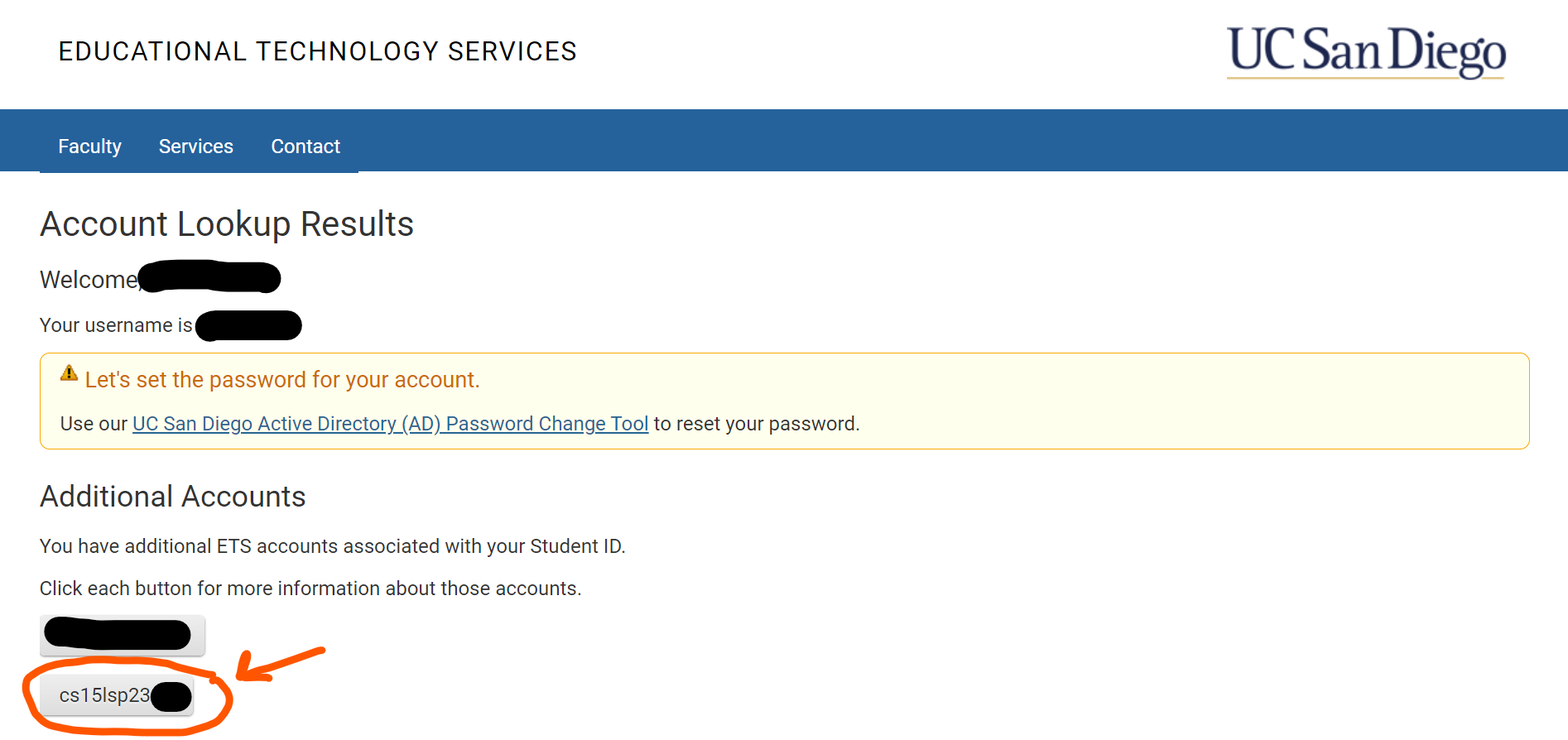
- You should see your CSE 15L account username, which should start with
cs15l. Copy that/Memorize for later use. - We now need to reset your account password. Click on the button for your CSE 15L account
- Click on the hyperlink that says Global Password Change Tool and follow the onscreen instructions to reset your password.
- You should end on a message that says something like “Password change successful.” With that out of the way, we can move on to setting up our terminal!
Step 1: Installing Visual Studio Code
Now the very first thing you need to do is download VScode at https://code.visualstudio.com/ and follow the onscreen instructions if you don’t already have VScode installed. The opening screen should look something like this (maybe with different colors/themes):
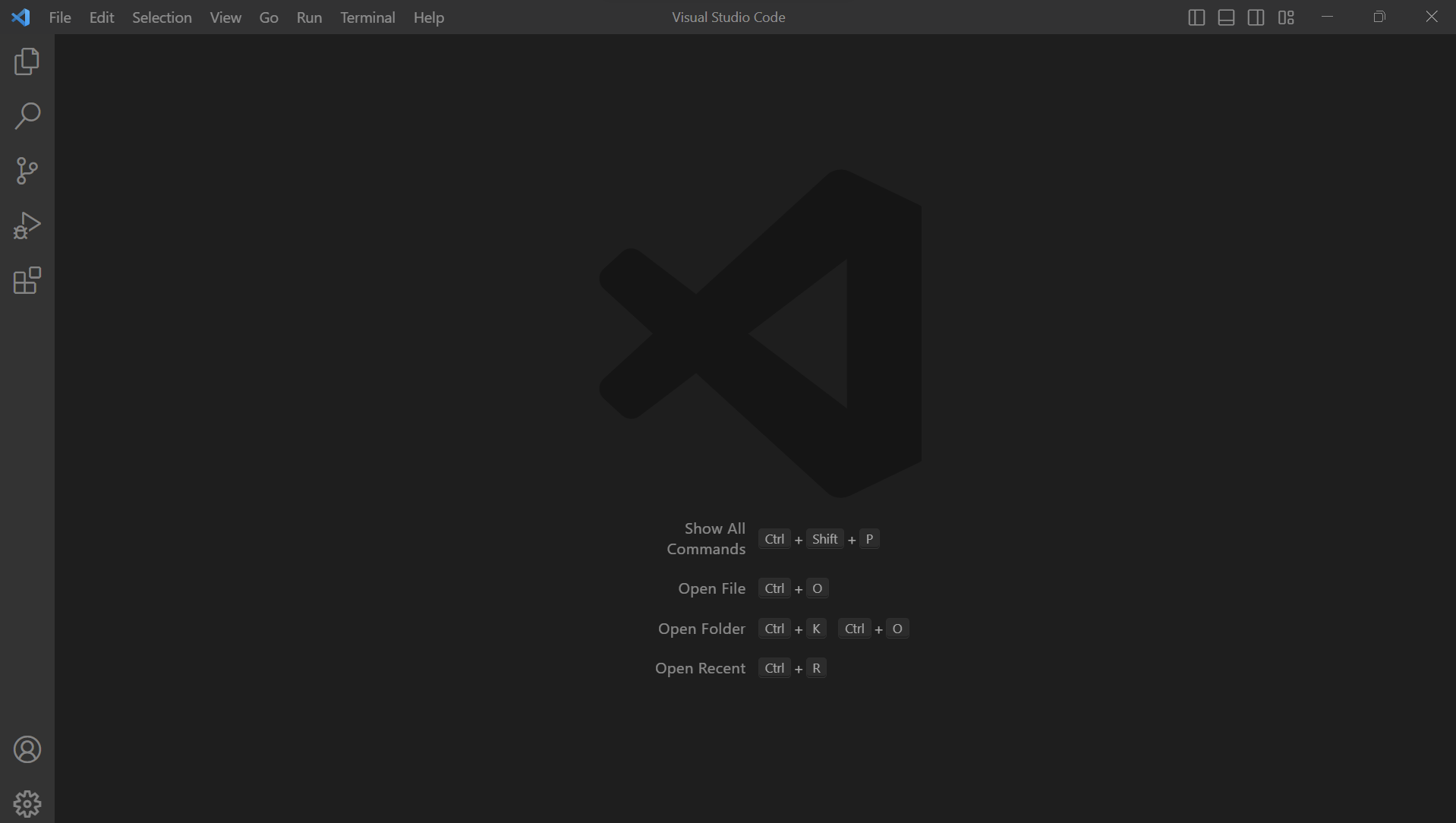 I already had VScode installed from a prior class, so I didn’t have to go through this beginning step.
Unfortunately, if you’re on Windows like I am, you will also need to install git for Windows through https://gitforwindows.org/, following the onscreen instructions.
After that, you can set the default VScode terminal to the newly installed git bash by following the steps in this post:
Setting Git Bash as Default Terminal For Windows
We are now ready to ssh :)
Step 2: Remotely Connecting
- If your VScode terminal isn’t already open, you can open it through Ctrl or Command + ` like I did, or you can also click the Terminal option on the top menu bar, and then click on New Terminal
- Now type in the command
sshfollowed by your course-specific account username and hit enter- It will look like
ssh cs15lyyyyzz@ieng6.ucsd.eduwith theyyyyzzpart being different
- It will look like
- If it’s your first time you’re connecting to the server, you’ll get a message that asks yes/no; go ahead and type
yesand hit enter - Then type/paste in your password you set from before and hit enter
Your output will look something like this:
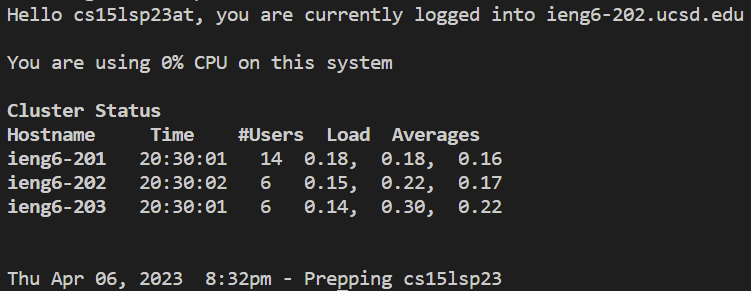
Now, any commands you run on the terminal will run on the remote server rather than your own computer. You can try some commands out; in the next step, I’ll show some examples of commands I tried.
Step 3: Trying Some Commands
This step is a little bit of freedom, where you can try out whatever commands you want and see what happens.
Here’s a screenshot of some of the commands I tried and their output
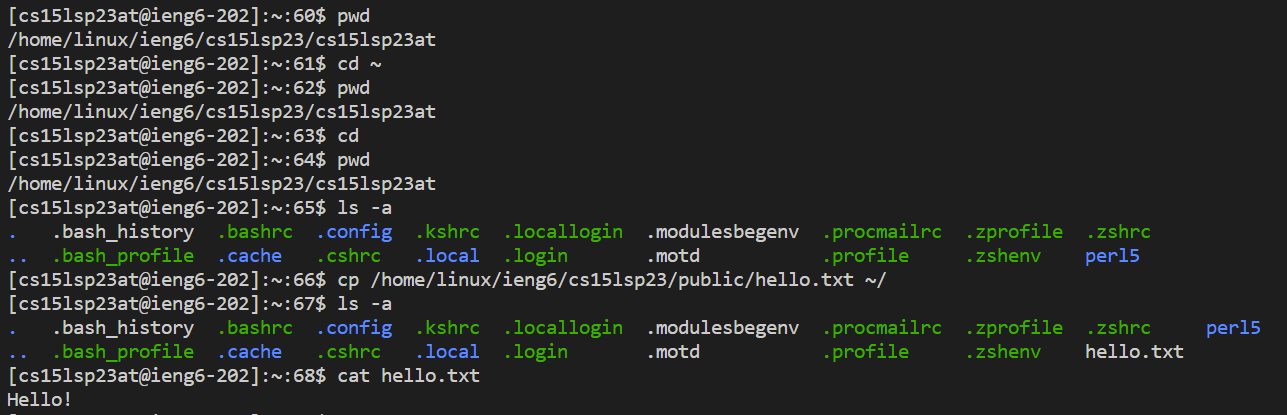
I just used some basic commands (pwd cd ls cp cat) and I’ll try explaining them below:
pwd: An abbreviation for “print working directory” and it does just that; it’s an easy way to check my current directory, which in my case was/home/linux/ieng6/cs15lsp23/cs15lsp23atcd: An abbreviation for “change directory” and it does just that based on the path that comes after it- The
~symbol stands for the home directory; and by usingcd ~andpwd, I’m able to see that I was already at my home directory from the beginning, which makes sense - By using
cdandpwdin succession, I’m able to confirm thatcdwithout arguments just takes me to my home directory
- The
ls: prints a list of the files and directories in the current directory- The
-aafterwards just means thatlsincludes entries starting with.- You can find out more info about commands like this directly through typing
--helpafterwards such asls --help
- You can find out more info about commands like this directly through typing
- The
cp: copies a file to a given pathcp /home/linux/ieng6/cs15lsp23/public/hello.txt ~/copied the publichello.txtfile to my home directory, which was confirmed throughls -a
cat: prints out the contents of a given filecat hello.txtprinted out the contents of thehello.txtfile that was now in my home directory
- One final note: if you want to log out of the remote server, you can use either Ctrl-D or run the command
exit
That’s pretty much it for this tutorial on remote access! Hope you got something out of this :D